Collaboration 7.0
How do I sign in to Collaboration for the first time?
If it is your first time logging into Collaboration 7.0, you should have first received a welcome email from Wildix. Click the “Log in ad join the team” button.
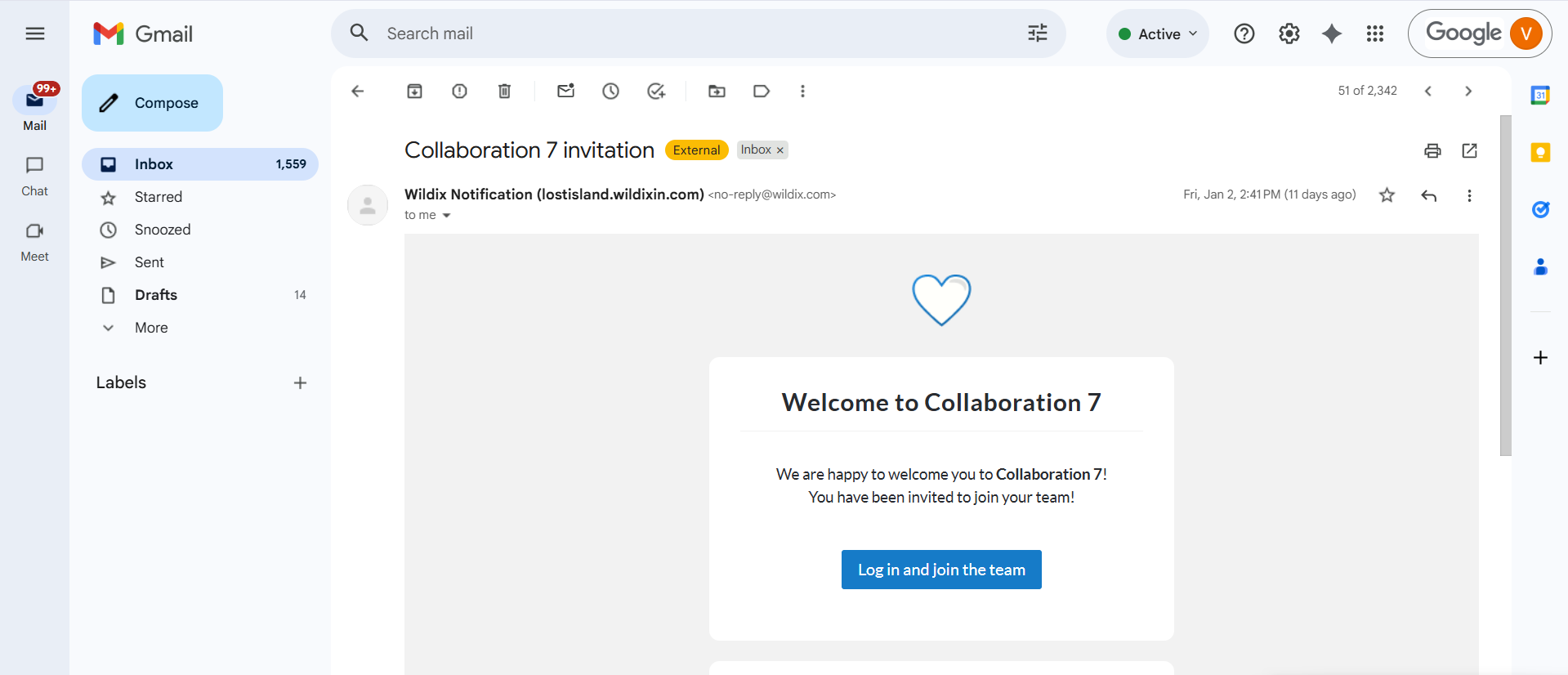
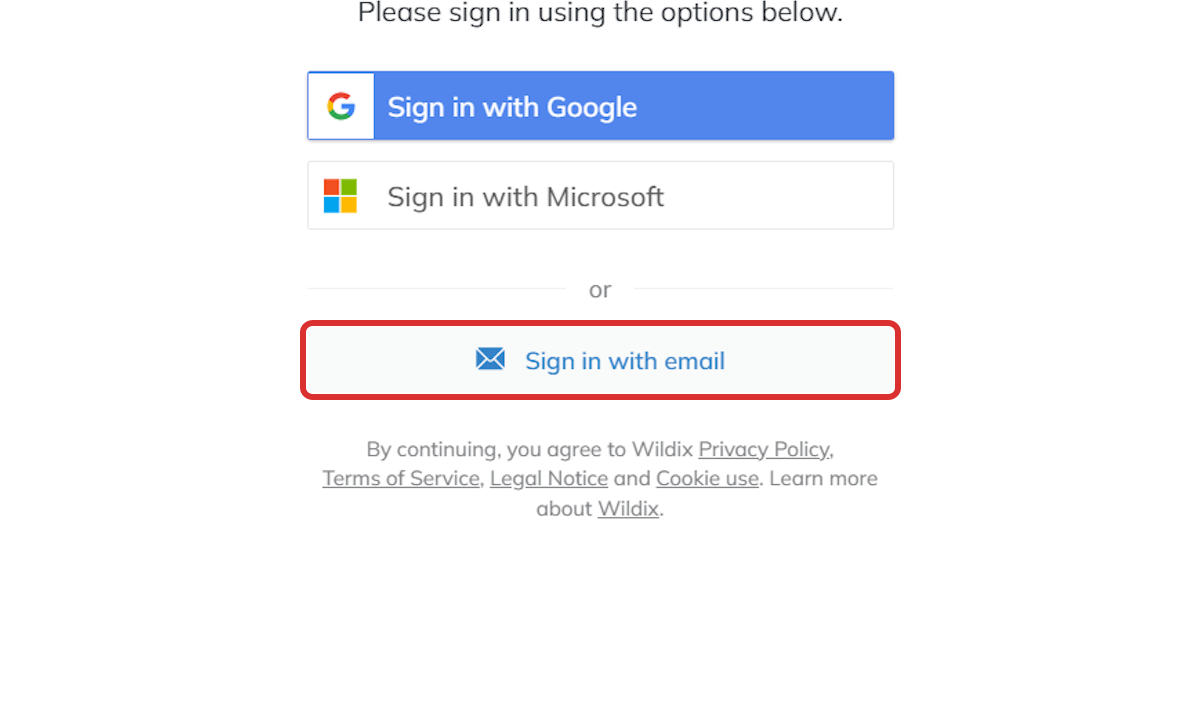
This link will take you straight to the Collaboration login where you will sign in with your email.
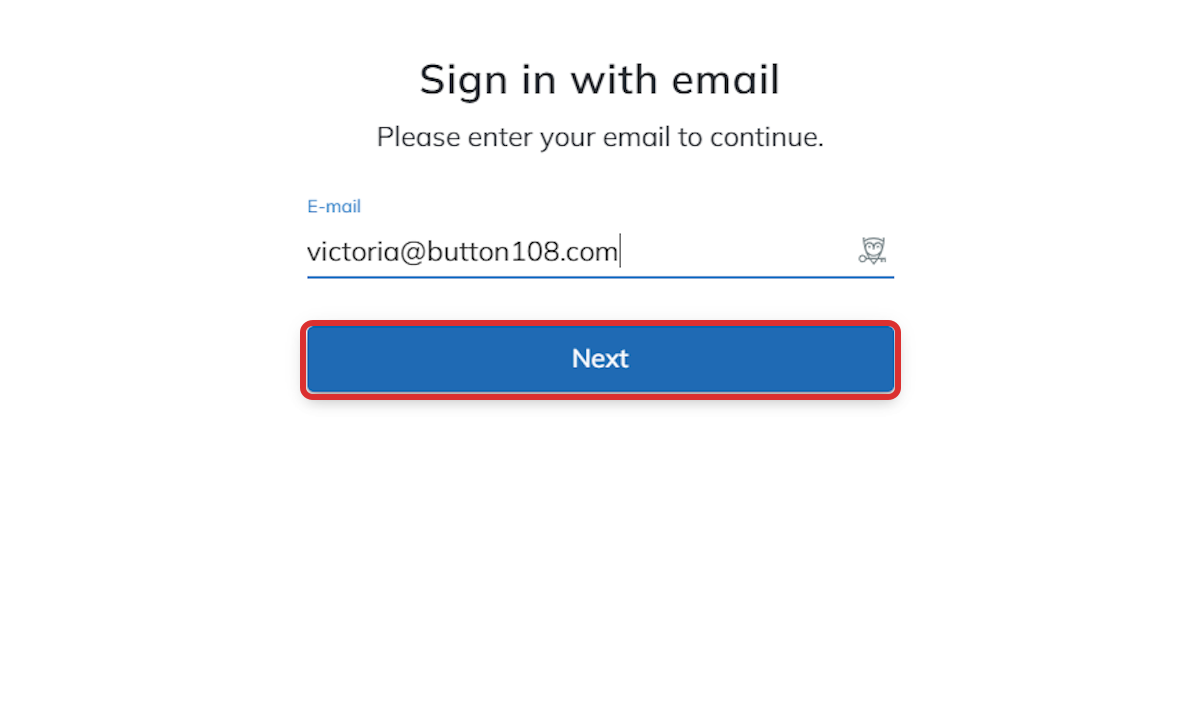
Simply enter the email you use with your organization and click next.
You will then receive a verification code through that same email and can enter it in the next step.
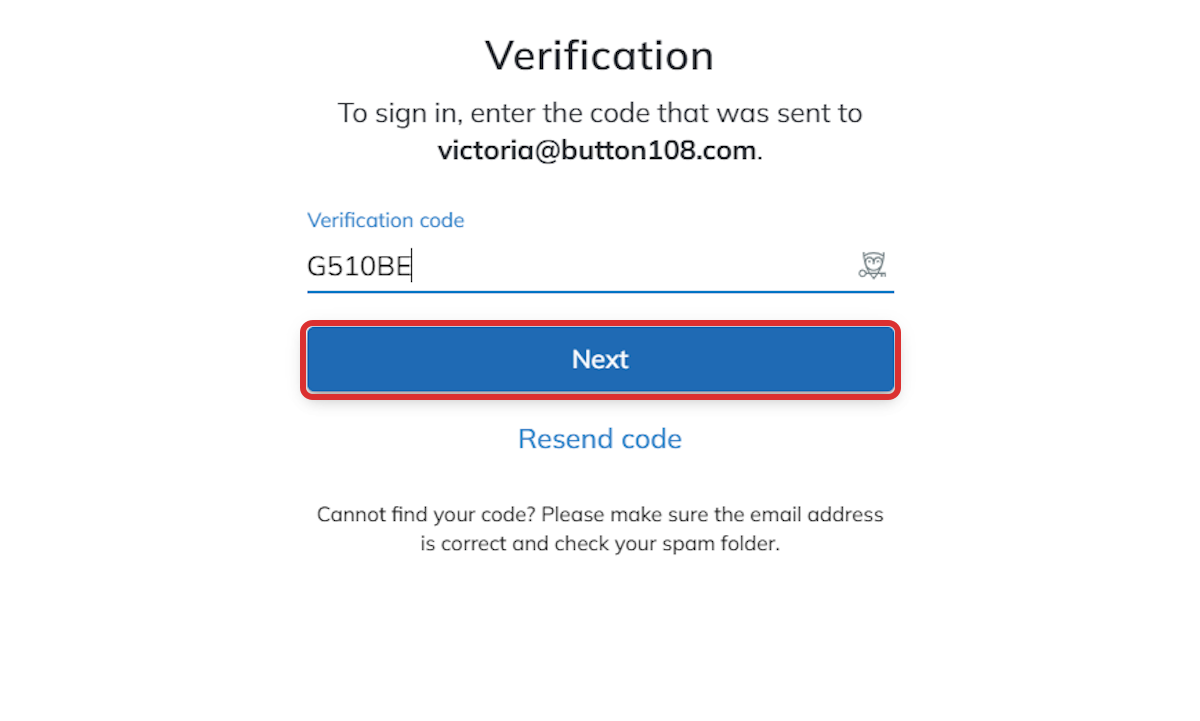
After that, you are logged in and ready to use Collaboration!
How do I make a call on Collaboration?
To make a call in Collaboration, start by pressing the keypad.
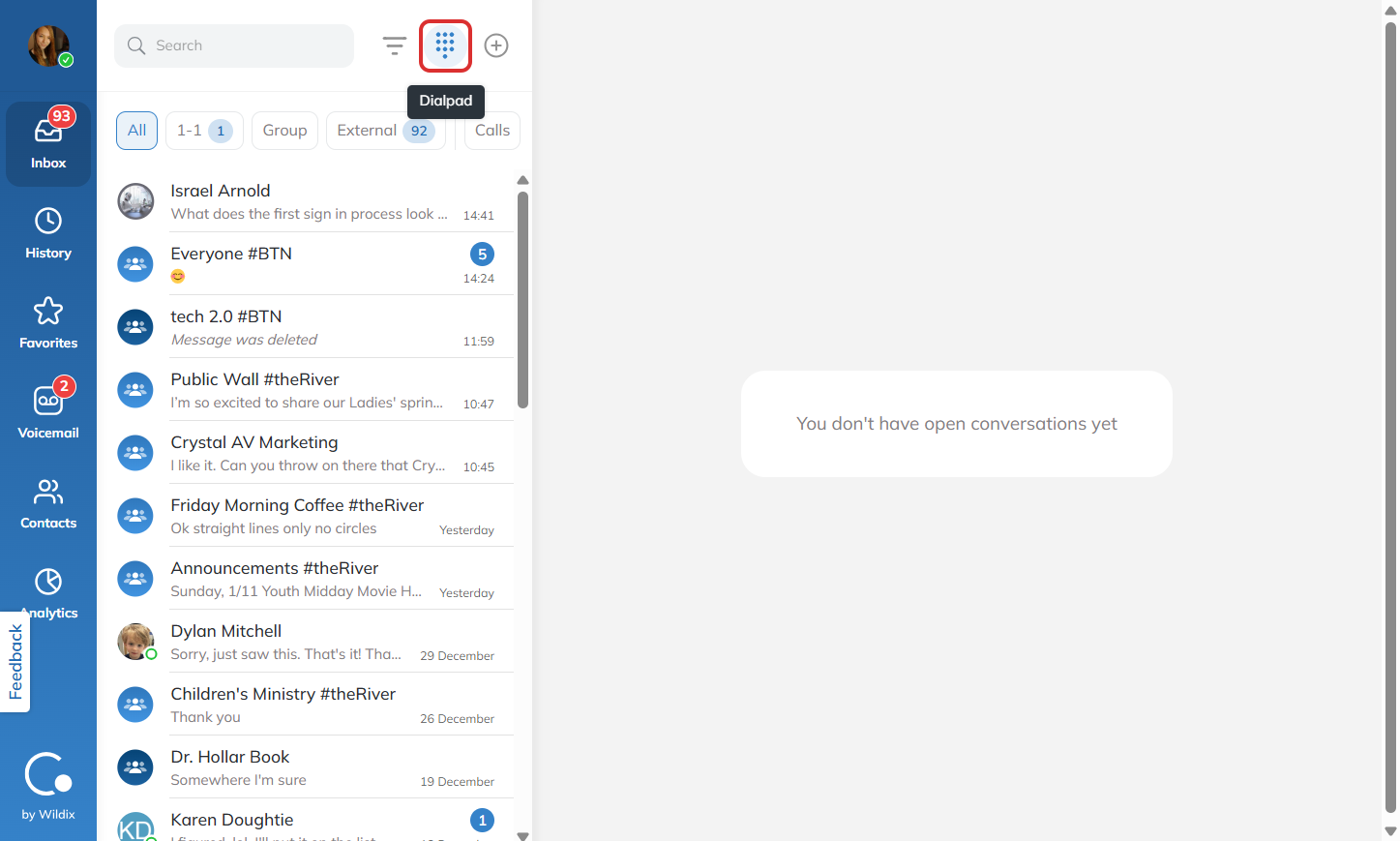
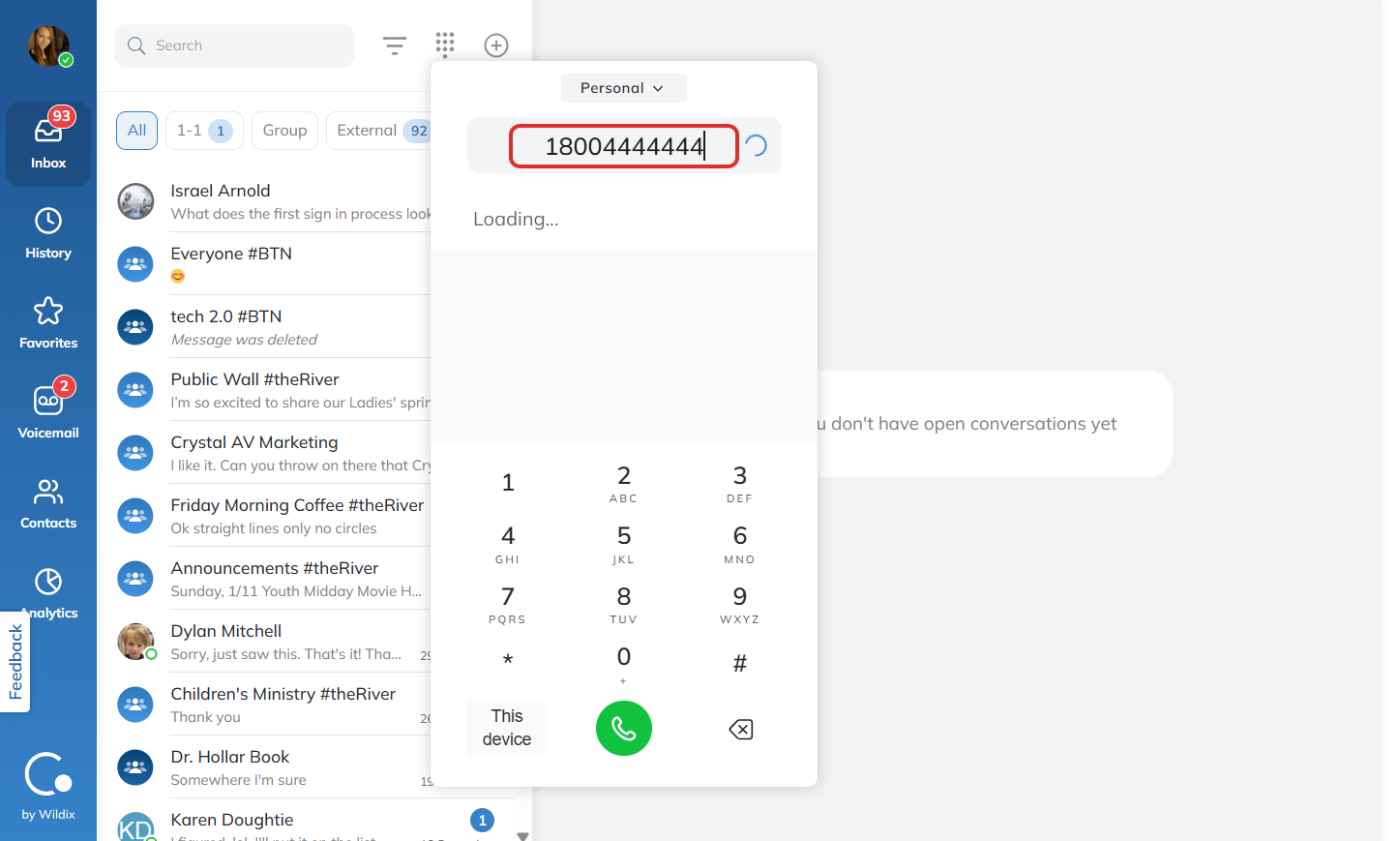
Then, you can enter in the number you would like to call.
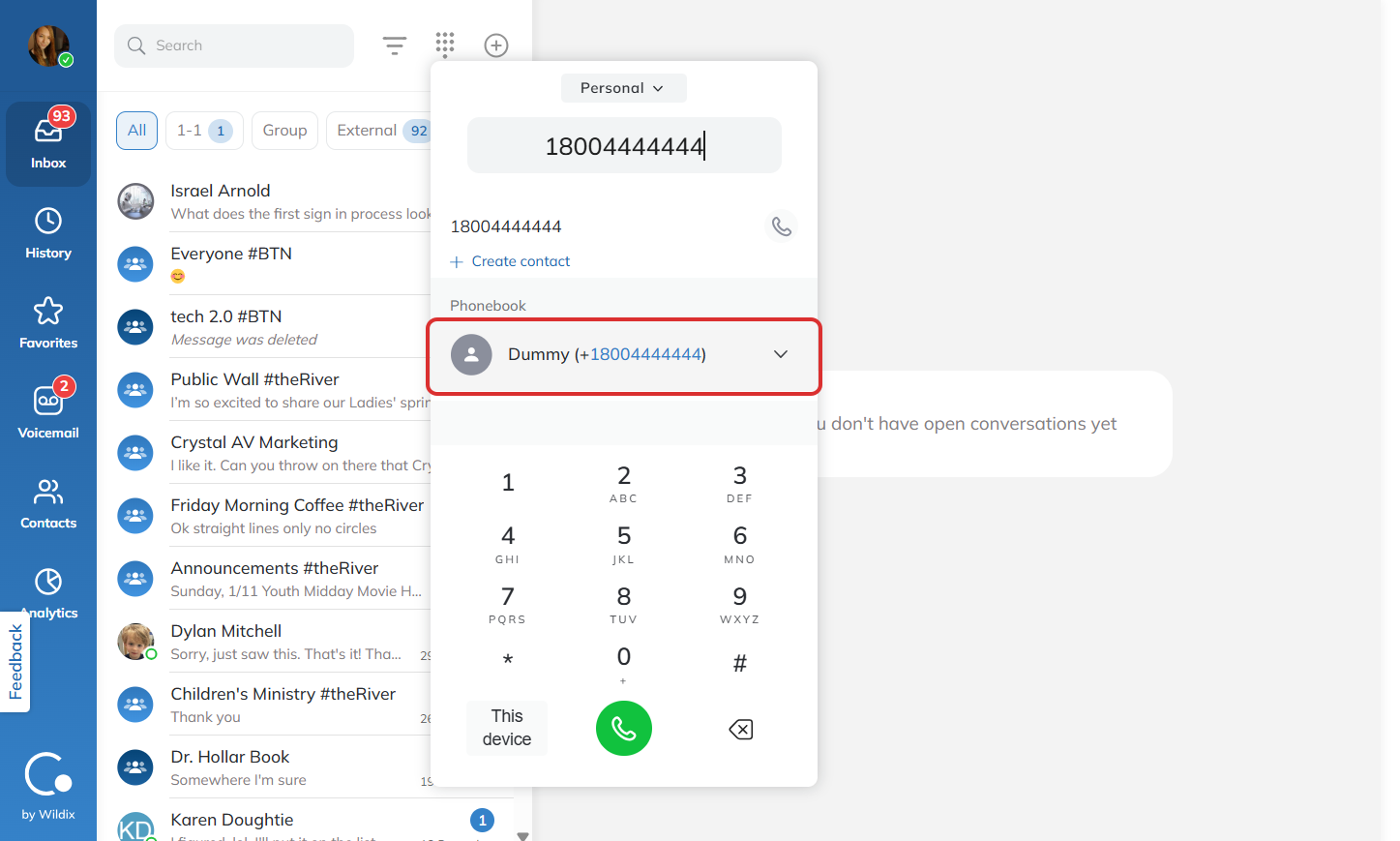
If a contact appears, you can click on their name to call them or press the green button under the keypad like you would on a call from your cell phone.
When you are ready to end the call, simply press the red button.
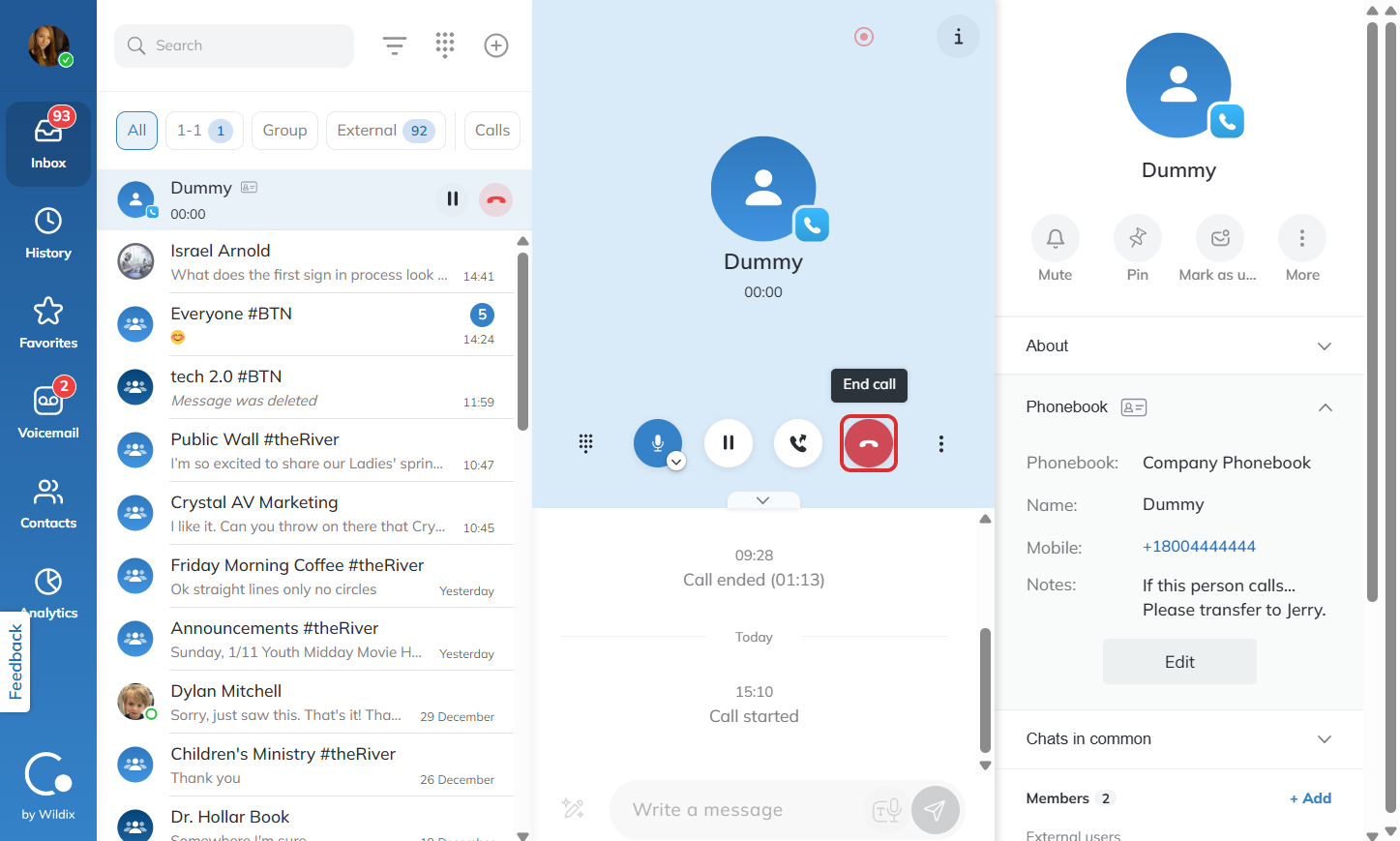
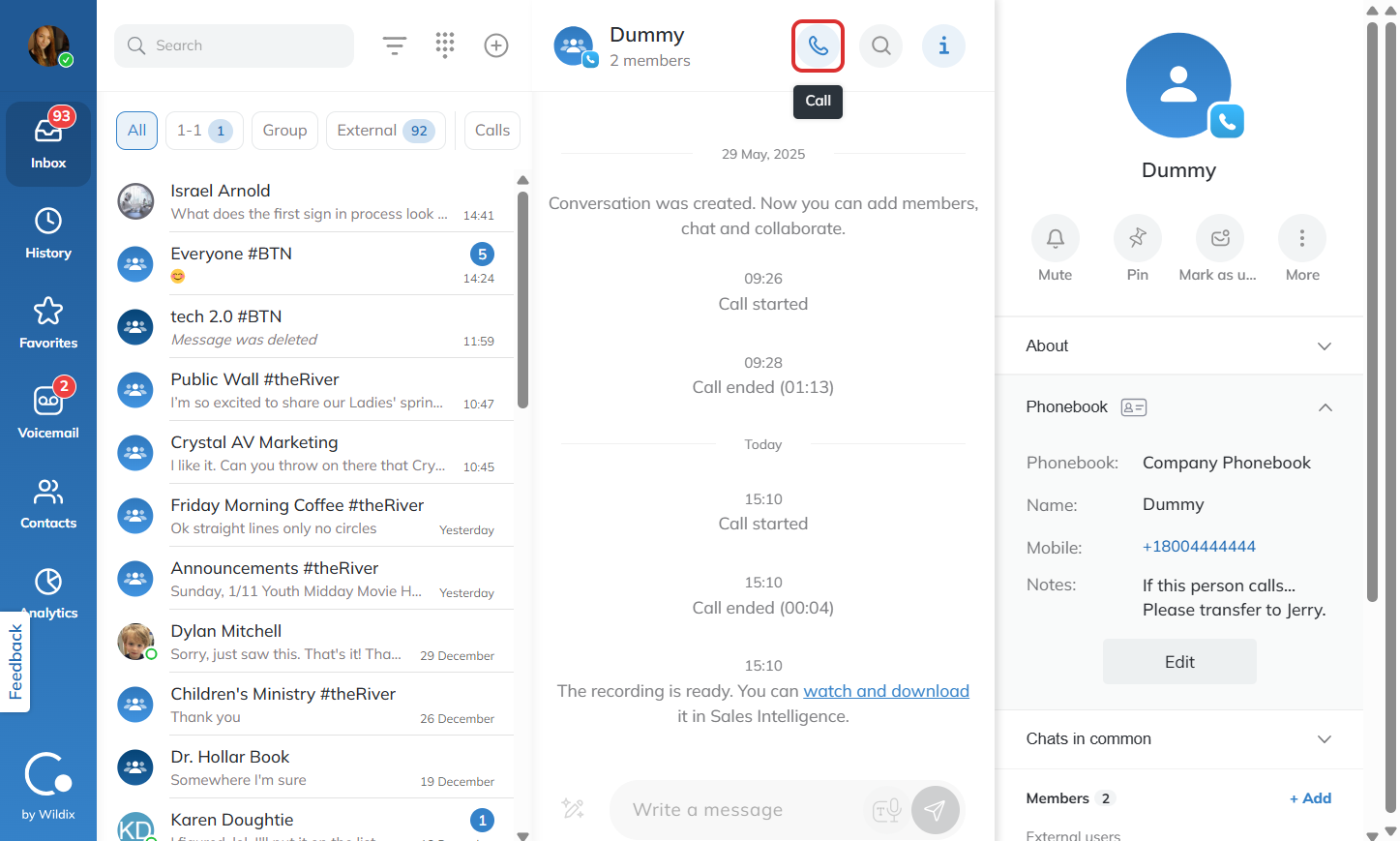
You can also call a contact who is already on you list of conversations by simply opening the conversation and pressing the call button on the top of the screen.
How do I use Collaboration’s favorites feature?
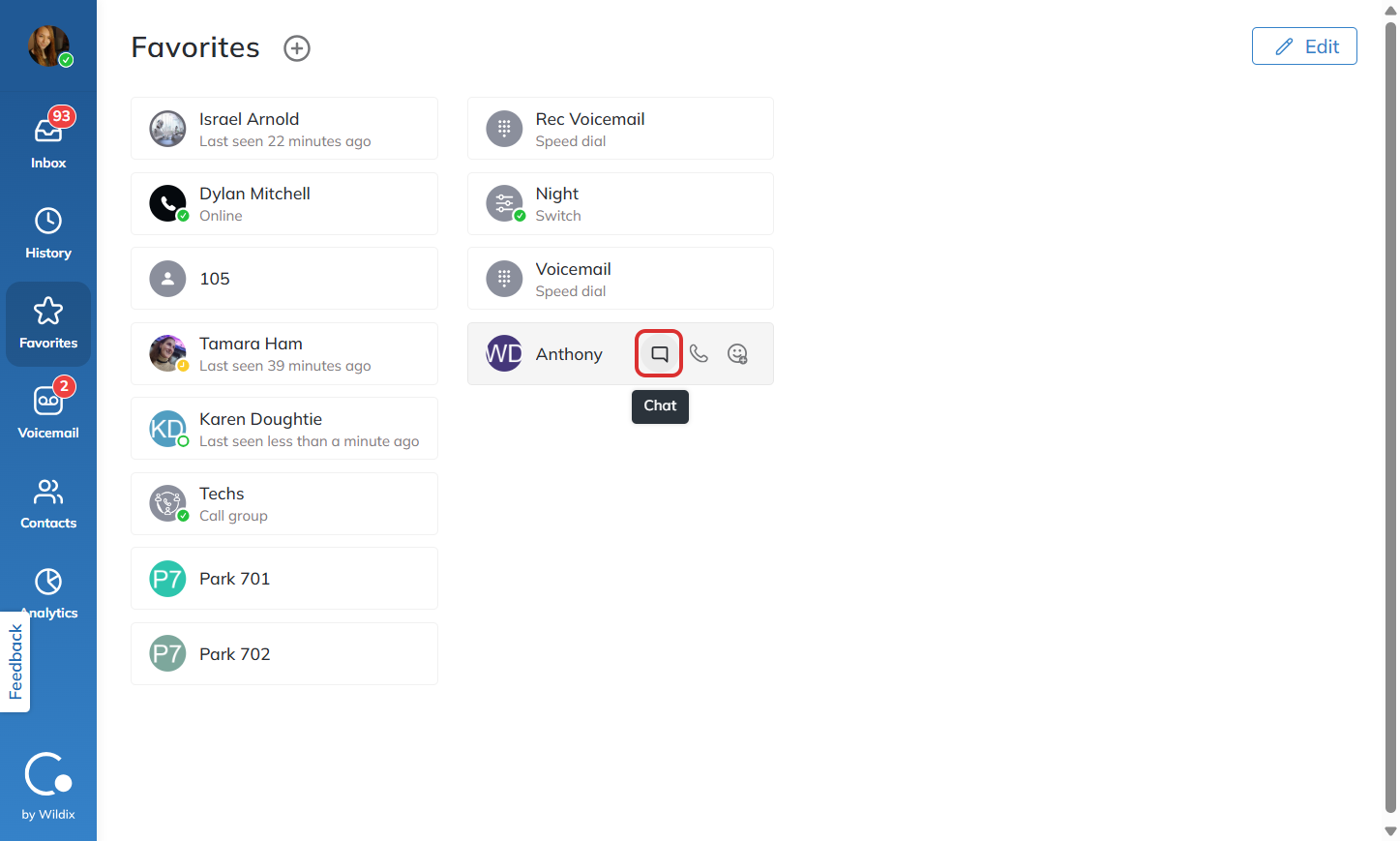
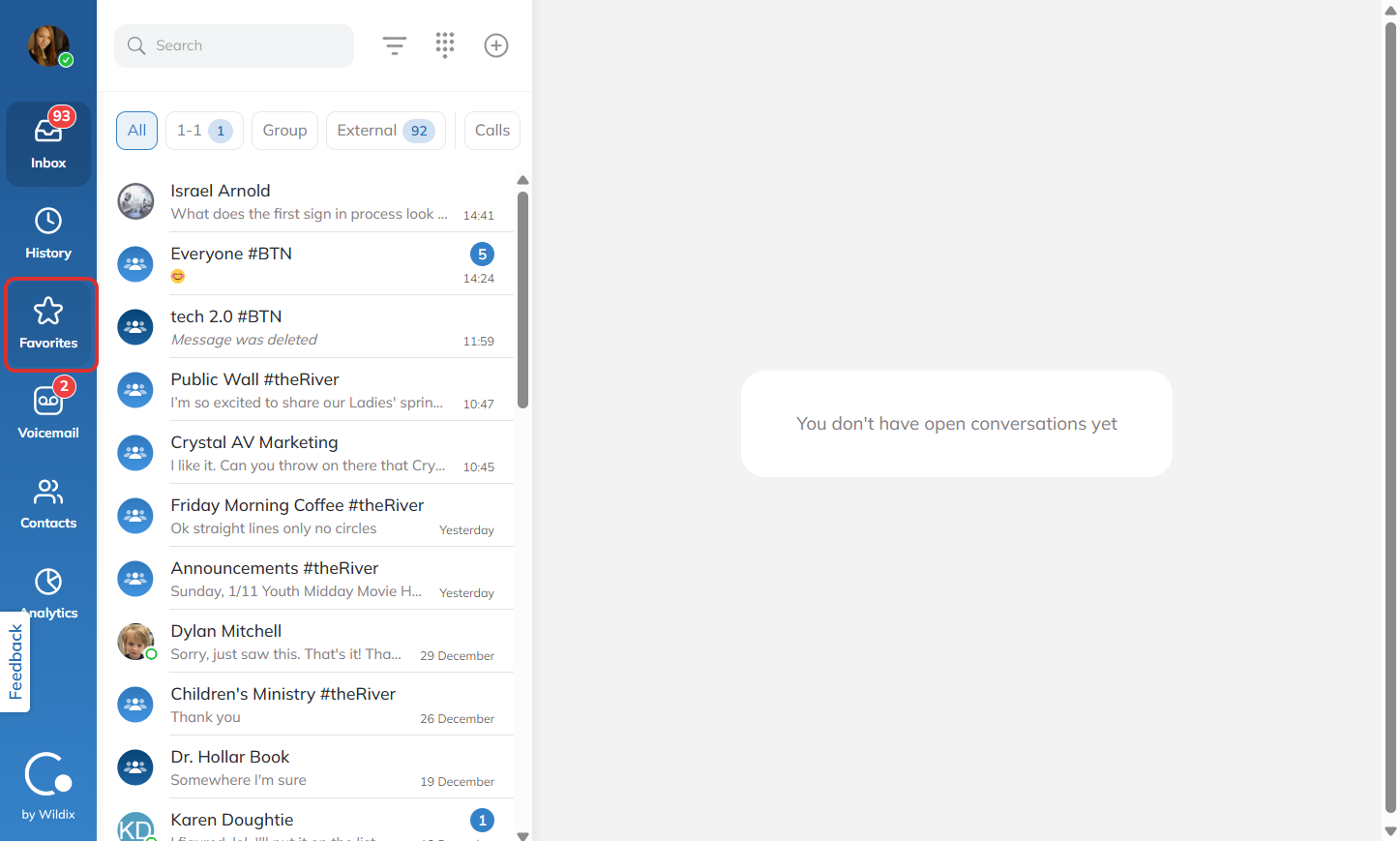
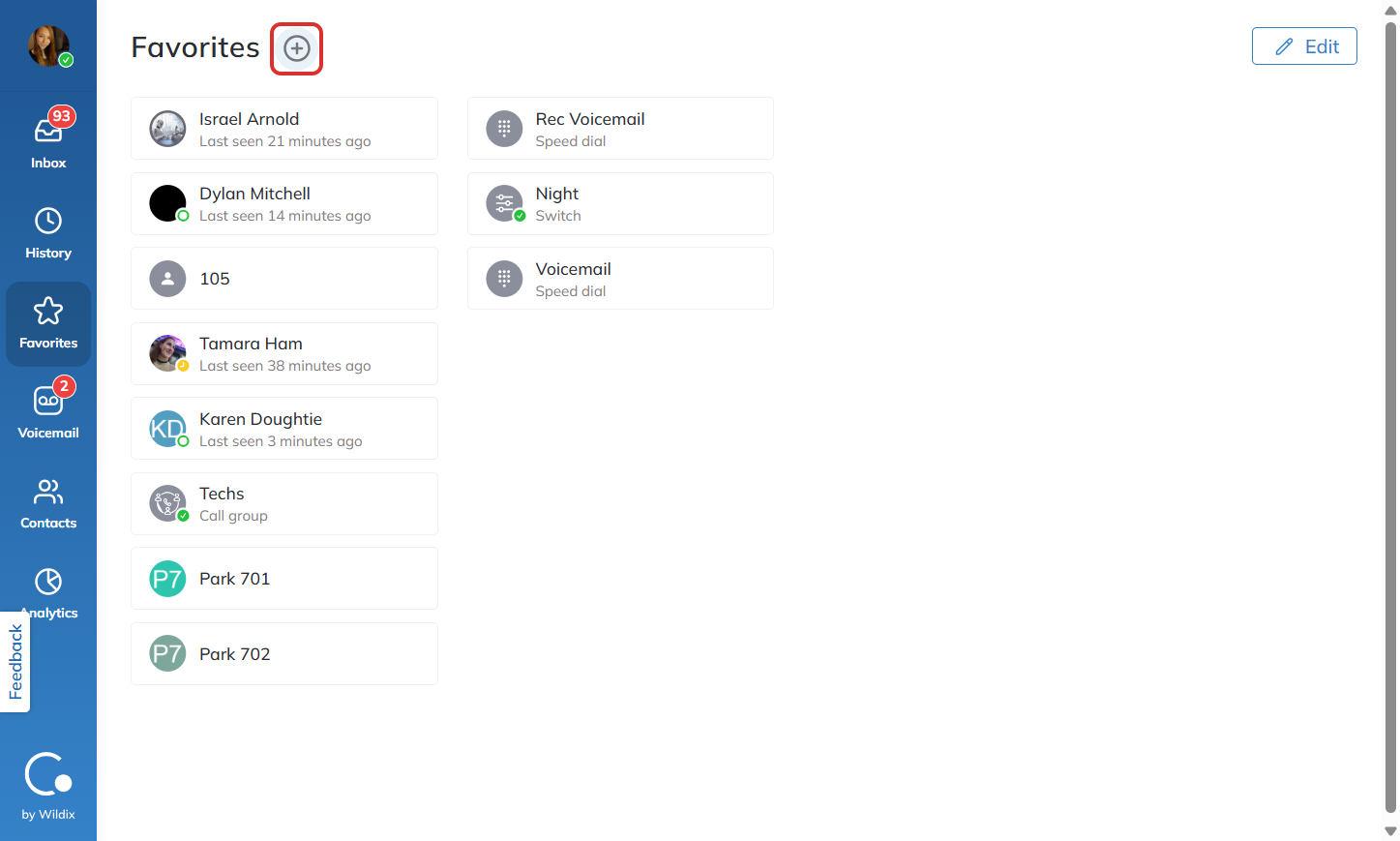
Click on the Favorites tab in Collaboration to view your saved contacts.
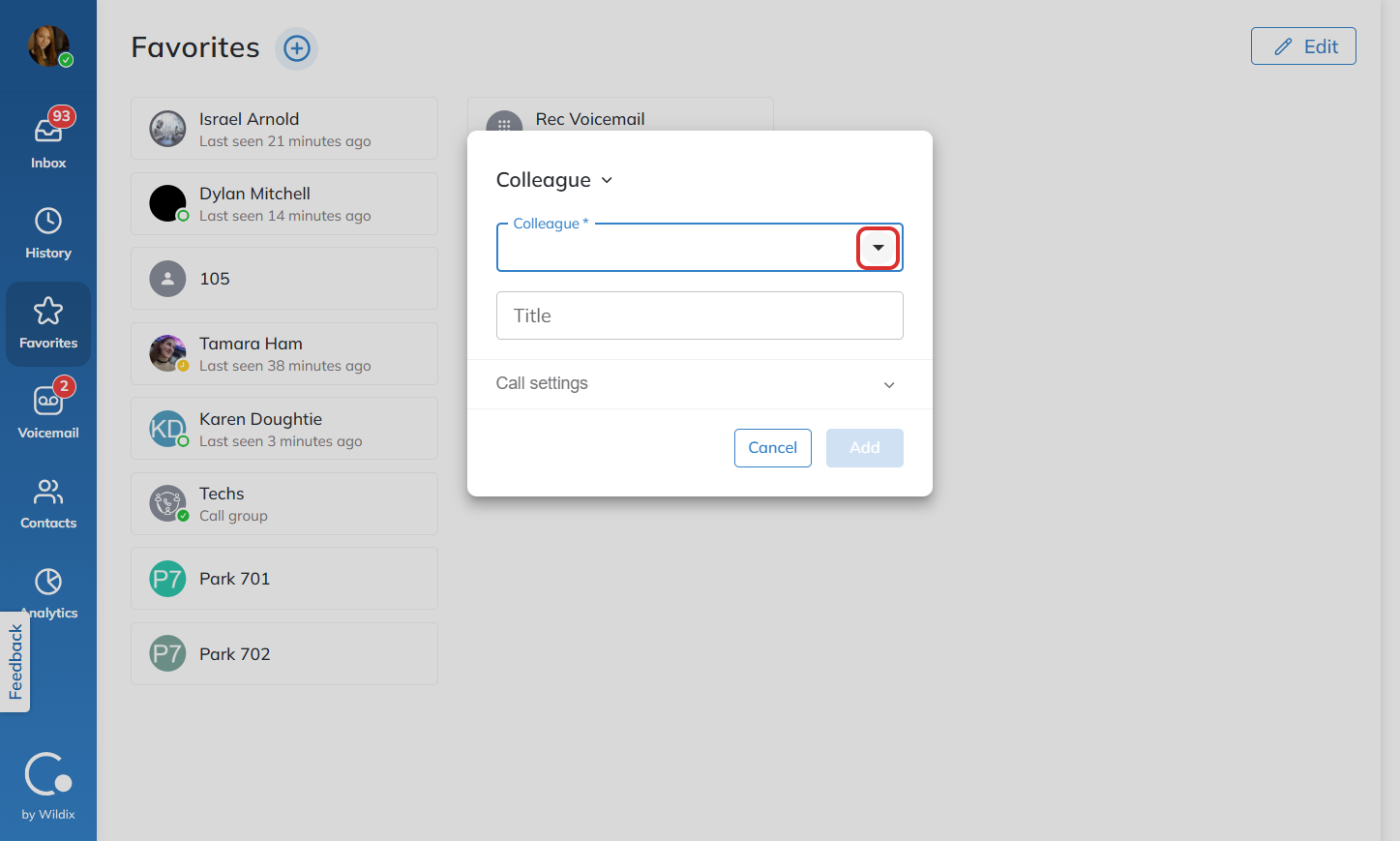
If you wish to add a new contact to your favorites list, click the + near the top of your screen.
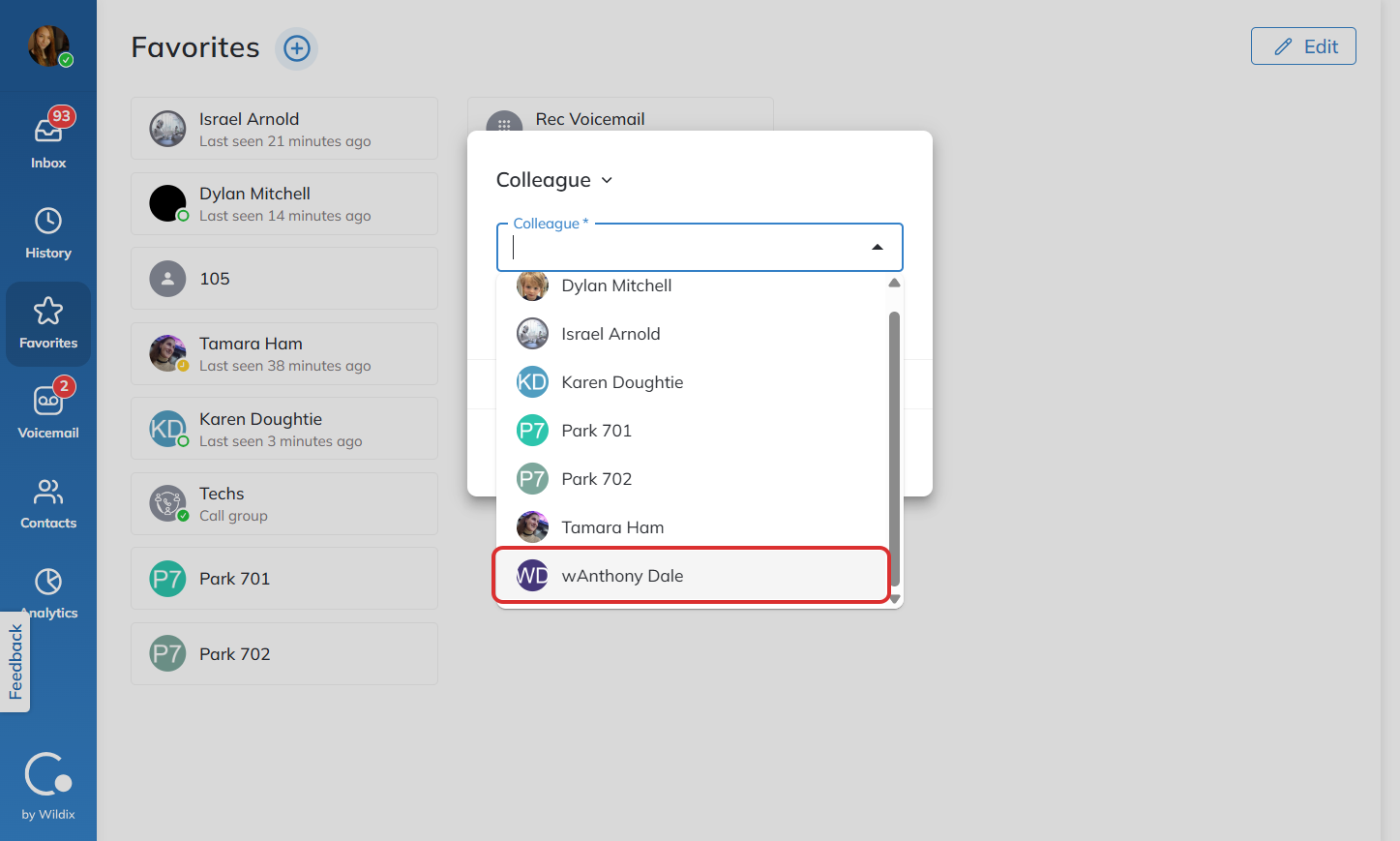
Click the dropdown to view which colleagues you can add to your favorites list.
Click on the name of the colleague you would like to add.
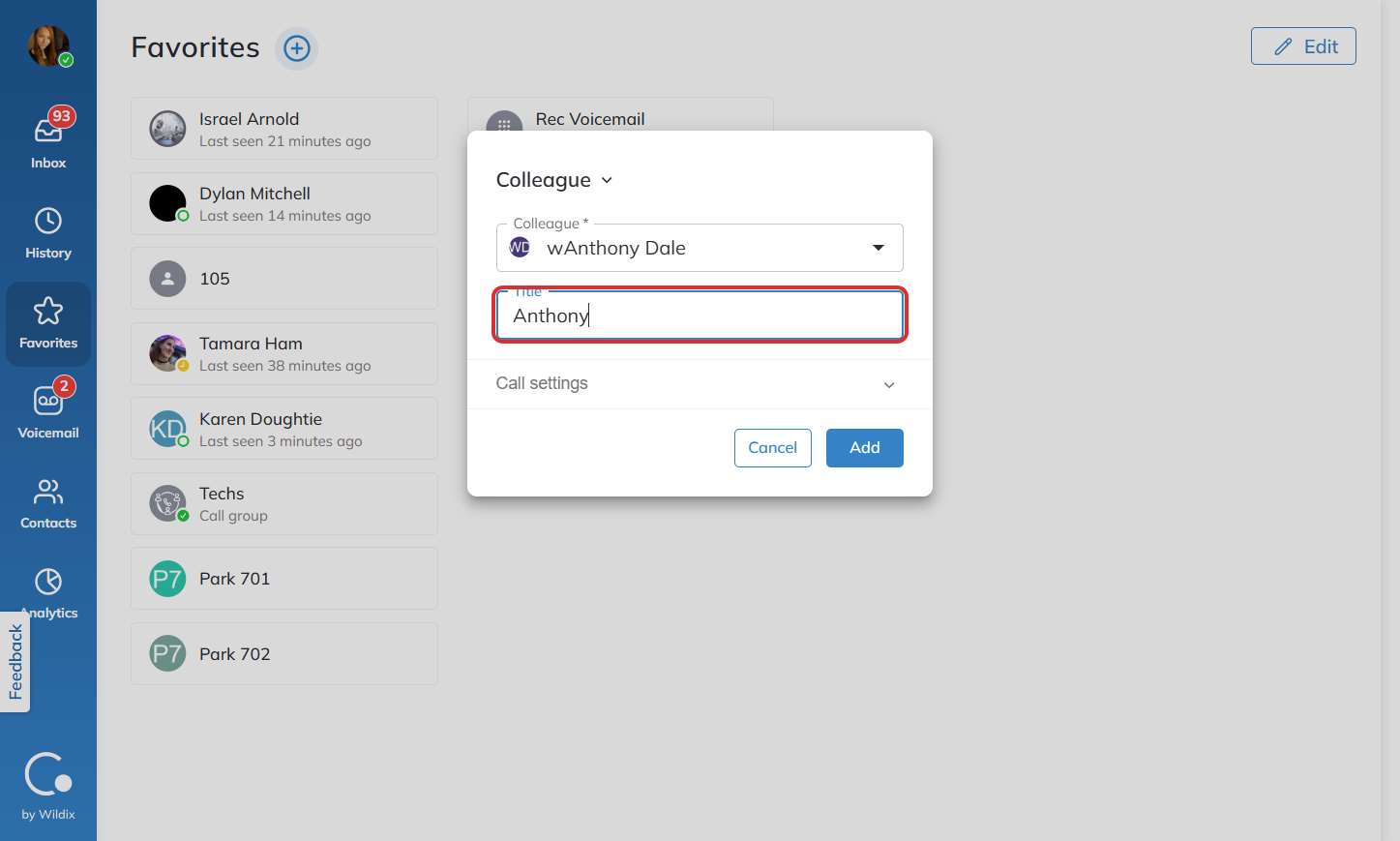
Enter the name you would like to see them as in your favorites tab.
Adjust call settings as needed.
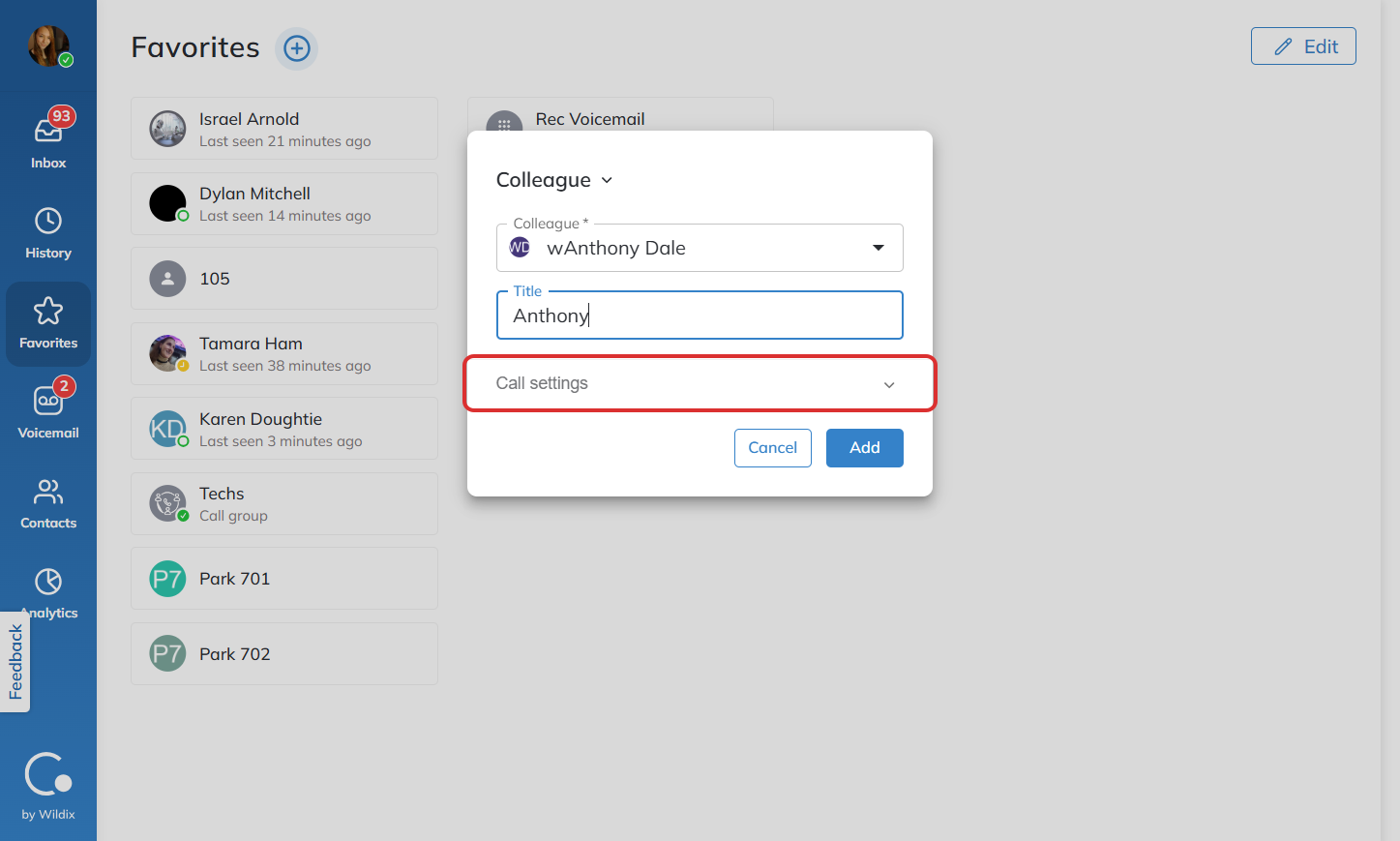
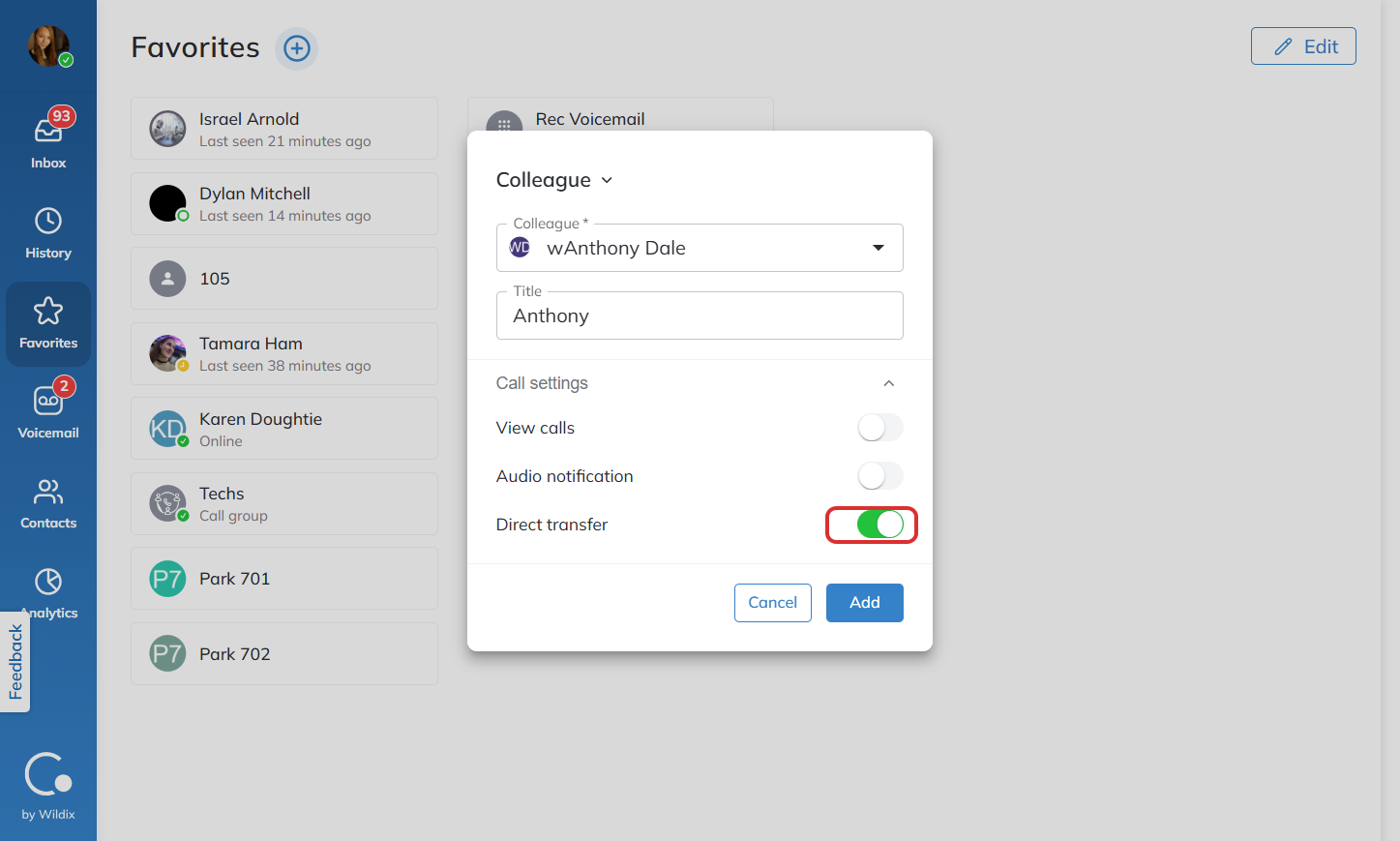
Click “Add” to complete the process.
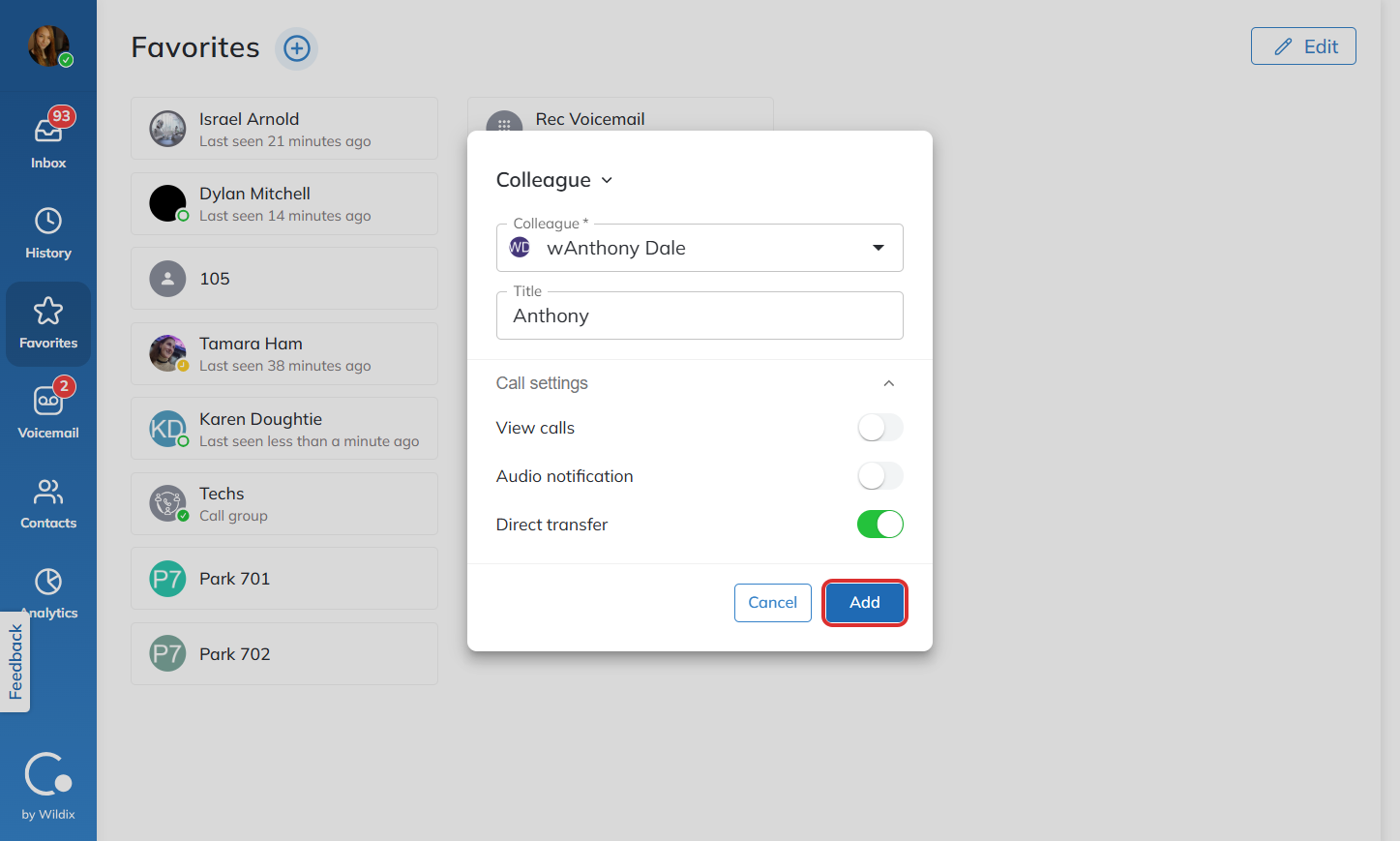
Once a contact is added to your Favorites list, you can easily call or text them using the icons beside their name.